Verify that you have the genuine Shadowrocket app before buying, installing, or entering a subscription. This guide walks you through checking the developer name, official icon, and product page ID on App Store listings and installed apps. It also distinguishes app identity from platform availability and connection setup. Use the same checks each time; search ranking, a similar name, or a successful connection are not proof of authenticity.
1. The three details to verify
Start with the actual App Store product page. Check the developer, Shadow Launch Technology Limited, the official icon, and app ID 932747118. All three should identify the same product. A matching app name, proxy protocol descriptions, or a high search ranking are no substitute for these checks.
If any detail doesn’t match, stop before entering a subscription
Don’t use two details that look similar to excuse a mismatch in the third. Return to the app download page on this site and use the link for your platform. Check the actual product page before buying, installing, or importing resources you already have.
The app ID identifies an App Store product listing; it is not an order number or version number. Your purchase history can help you find an app you bought, but a payment alone doesn’t prove that you selected Shadowrocket. Check the product details, not just the price or the app name on your Home Screen.
2. Check the App Store product page in order
On iPhone or iPad, go to the App Store using the app download page on this site. The iPhone / iPad version costs $2.99 as a one-time purchase. The Mac (Apple silicon and Intel), Windows, Android, and Linux versions are free. Check the App Store listing for the iPhone / iPad system requirements. Prices may appear in local currency depending on your store region, so price alone doesn’t confirm an app is genuine.
-
Open the product page
Open this site’s app download page and select the App Store link for iPhone / iPad. If you found the app through search, open its product details first; don’t buy directly from the results list. Make sure you’re viewing the product page, not a search snippet or another website’s description.
-
Check the developer
Check the developer details on the product page, then confirm the provider information under Information. The full name should be Shadow Launch Technology Limited. Don’t stop at a partial match such as “Shadow” or “Technology,” and don’t mistake a review author for the developer.
-
Check the icon
Compare the official icon shown below: a blue-violet outlined rocket on a white background. Look at the overall design and linework, not just whether it shows a rocket. Icons can be copied, so use this as one check and verify the app ID as well.
-
Check the app ID
Use the share option on the App Store product page to copy its link, then paste it into Notes on your device. Check that the product path contains id932747118. If you open the product page in a browser, you can check the address bar instead. Complete these checks before buying or opening the app.
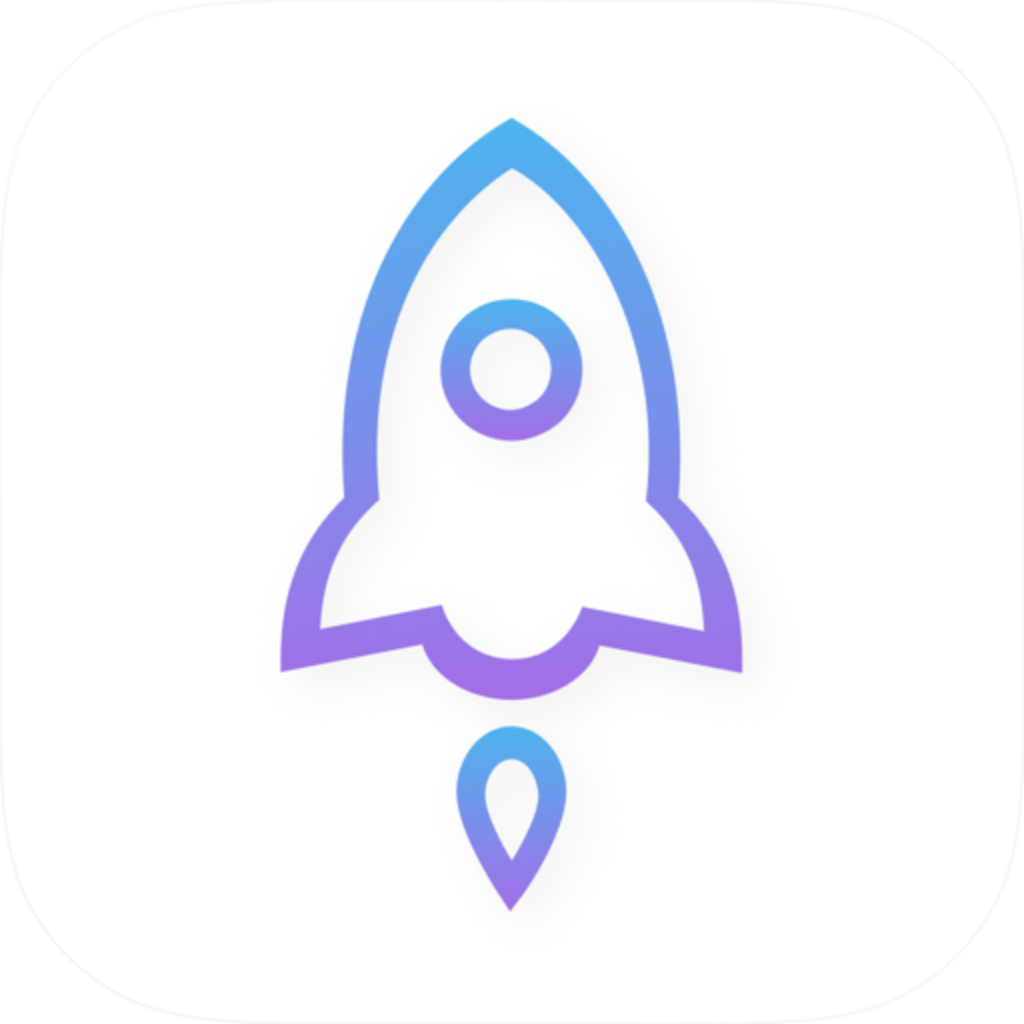
The product address used for verification is shown below. It identifies the app; to get it, use the relevant link on this site’s app download page.
https://apps.apple.com/us/app/shadowrocket/id932747118The /us/ in the link indicates the store region; it is not the app ID. The region code or display language may differ in your local storefront. That doesn’t mean you’re looking at a different app. Check the domain apps.apple.com, the product path containing id932747118, and the developer details on the page. Seeing this address in the text of a webpage doesn’t mean you’re on the actual product page.
3. Recheck an installed app and other platforms
For an app already installed on your device, go back to its source page to verify it. Interface labels such as Home, Config, and Settings can help you find your way around, but they don’t prove the app’s identity. Similar-looking screens, support for a particular protocol, or a working connection are no substitute for checking the source.
- iPhone / iPad: Find the app in your App Store purchase history, open its product page, and check the developer and app ID again. If the name is truncated on your Home Screen, don’t rely on the shortened name.
- Mac: Select Mac on this site’s app download page. Check whether your Mac has Apple silicon or an Intel processor under About This Mac, then follow the matching installation instructions. The chip type determines which installer to use; it doesn’t change how to verify the app’s identity.
- Windows, Android, and Linux: Use the link for your platform on this site’s app download page. The App Store app ID identifies a store listing; it doesn’t apply to installation files or filenames for these platforms.
- An installed copy from an unknown source: Stop before entering any new subscription URL or credentials. Note where it came from, its app name, and any messages it displays, then check the correct platform link on this site. Don’t continue setup based only on the Home Screen icon.
Shadowrocket is closed-source commercial software. The iPhone / iPad version is a $2.99 one-time App Store purchase. The Mac (Apple silicon and Intel), Windows, Android, and Linux versions are free, with installers available from this site. Free availability is a platform-specific arrangement, not a way to verify a particular file. Paying for an app doesn’t replace checking the developer and product listing either.
4. Check app identity separately from connection settings
Verify the app first, then troubleshoot the connection. Even a genuine app may not connect because a subscription has expired, node parameters are incorrect, or rules are misconfigured. Conversely, a successful connection doesn’t prove that an app is trustworthy. The comparisons below are for troubleshooting Global Routing after the app’s identity has been confirmed; they are not authenticity tests.
Config
RecommendedChoose policies according to the rules in the active configuration. Use this as a day-to-day setup only after checking the configuration source and its rules. Not all traffic that misses a rule automatically connects directly; the final route also depends on rules such as FINAL.
Use when: You have a trusted configuration and need rule-based routing
Proxy
Route client-handled traffic through a proxy to test the proxy path temporarily. If Proxy works but a domain in Config doesn’t, check rule matching and policy selection before questioning the identity of the app you bought.
Use when: Briefly isolating a rule-based routing issue
Direct
Route client-handled traffic directly. This does not test whether proxy nodes are working. If a local website loads with Direct selected, that only confirms the direct route is available; it says nothing about the nodes in your subscription.
Use when: Checking whether your local network can connect directly
Change one troubleshooting variable at a time
Note the current selection under Home → Global Routing, run a brief comparison test, then restore the original setting. If you use Scene, check the corresponding scene as well. Don’t switch nodes, edit rules, and replace a subscription all at once, or you won’t know which change affected the result.
Settings → On Demand controls when connections start automatically; it is not an app authenticity switch. The system prompt to add a VPN configuration is part of the authorization required to establish a system network connection, not proof that an app is genuine. Proceed with that authorization only after checking the app’s source and deciding to establish a connection.
5. Common questions before and after purchase
The name and icon match. Do I still need to check the ID?
Yes. Open the actual App Store product page, copy its link, and check for id932747118. Then verify the developer, Shadow Launch Technology Limited. The name and icon in search results can help you find a listing, but they don’t replace checking the product page.
The store shows a price in local currency. Did I find the wrong app?
Currency alone doesn’t tell you. Check the developer, icon, and app ID again. The pricing on this site is $2.99 as a one-time purchase for iPhone / iPad; the Mac, Windows, Android, and Linux versions are free. Check the price shown by your store before purchasing. For iPhone / iPad system requirements, refer to the App Store listing.
I bought the app, but there are no nodes. Am I missing an installation?
A one-time app purchase does not include a service plan. Get a subscription from your service provider. If you already have one, go to Home, tap “+” in the upper-right corner, then choose Type → Subscribe to enter and save your URL. This site does not provide, sell, or recommend nodes, subscriptions, or service providers.
I bought a similar-looking app by mistake. Can I install this one over it?
First, check your App Store purchase history to confirm which item you bought. Then use Apple’s purchase-history support options to review how to resolve the issue. Refund eligibility is determined by Apple. Next, open the correct product listing from this site’s app download page. Don’t assume that installing another app will transfer the original purchase or configuration automatically.
6. Checklist after verification
Check app access and resource imports separately. First verify the installation source and platform; only then check the source and contents of a subscription you already have. Subscription URLs often contain access credentials, so don’t publish a real link, even when demonstrating an import.
- For iPhone / iPad, note the developer name and app ID of the correct product. For other platforms, return to this site’s app download page and select the right operating system and chip option.
- After launching the app for the first time, check Home, Config, and Settings to understand where you are, then follow the setup guide. Don’t judge authenticity just by the launch screen or the presence of a particular button.
- Get an existing subscription from your service provider. Check the URL before entering it under Subscribe. Subscription node details and routing rules in Config are separate things to verify; importing nodes doesn’t mean routing rules are configured.
- If the connection fails, note the selected node, Global Routing mode, and error message. Hide your subscription credentials before troubleshooting. A network timeout does not by itself mean the app’s identity is wrong.
Following these steps helps avoid two common mistakes: entering sensitive information based only on a name or payment amount, and blaming app identity for service or routing problems after the app has been verified. If something doesn’t match, recheck the source first; once the app is confirmed, troubleshoot the connection separately.